User Guide
What a customer sees from their first login onward: three design engines, a live order tracker, and a service logbook for furnaces already on the shop floor.
Getting Started
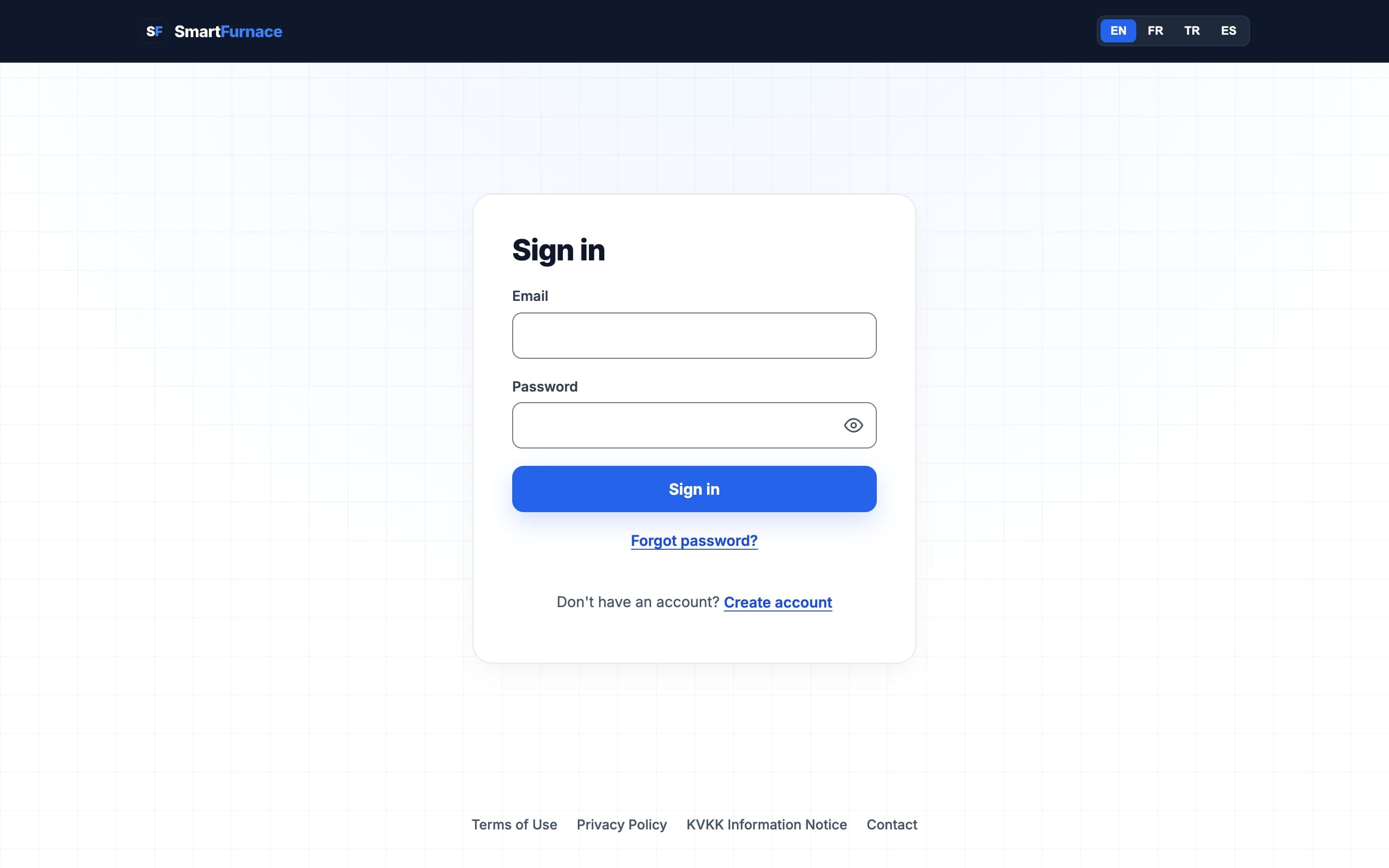
Every account starts at the login screen. New accounts require admin approval before they can sign in — this is deliberate, not a bug: it keeps unapproved or unverified accounts out of the workspace entirely.
How it works
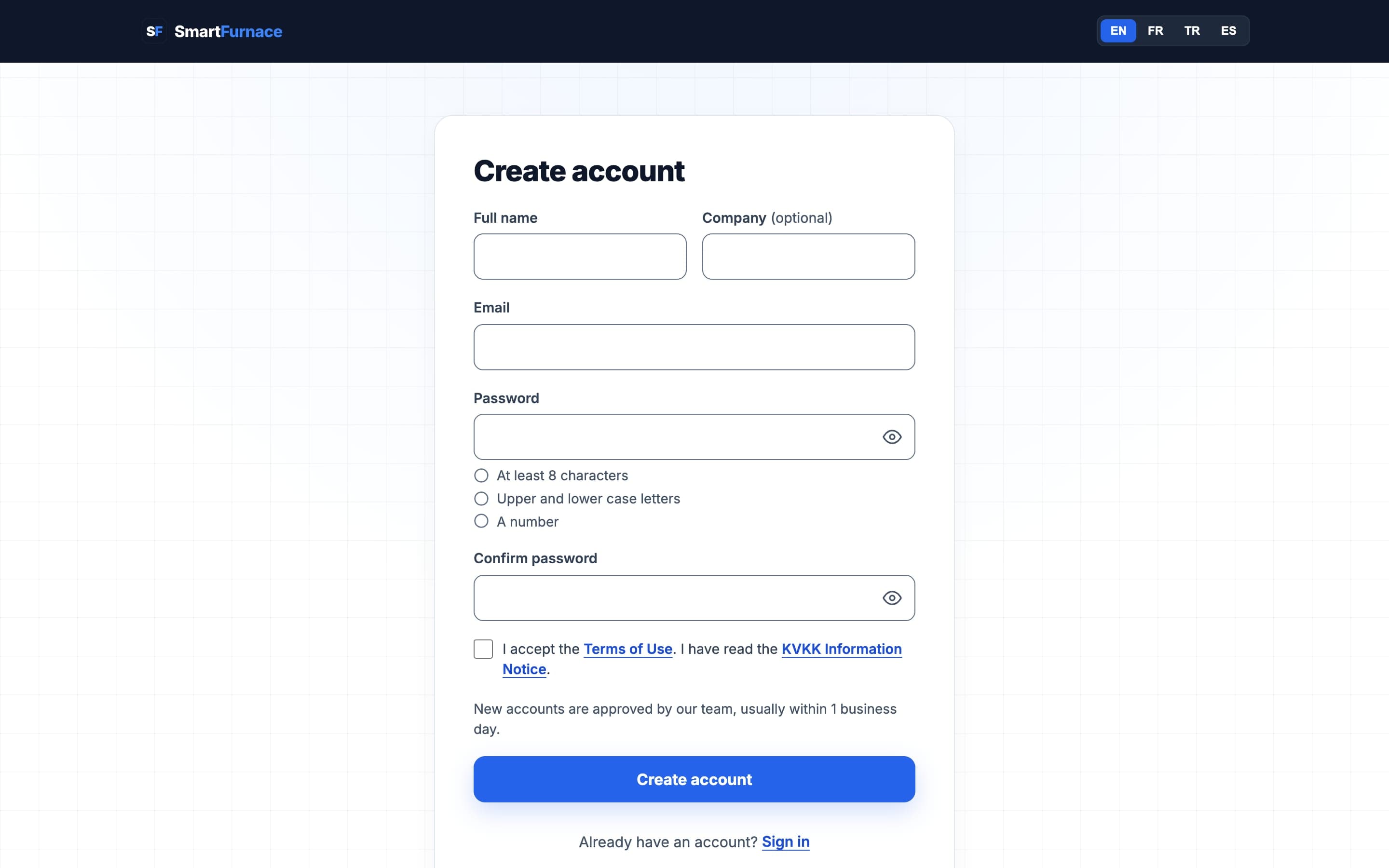
- Go to Sign up from the login page and register with a work email and password.
- Your account is created immediately but flagged pending approval — you cannot sign in yet.
- A SmartFurnace admin reviews and approves the account — usually within 1 business day.
- Once approved, sign in with your email and password from the login page.
- If your company already has a workspace, ask an existing team member to invite you instead (§10 Settings & Team) — invited members skip the approval queue.
Serkan from AVF Technologies registers with serkan.atas@avftechnologies.com. He gets a "your account is pending approval" message on his first sign-in attempt. The next morning, a SmartFurnace admin approves his account from the Users page — from then on his credentials work normally.
Dashboard
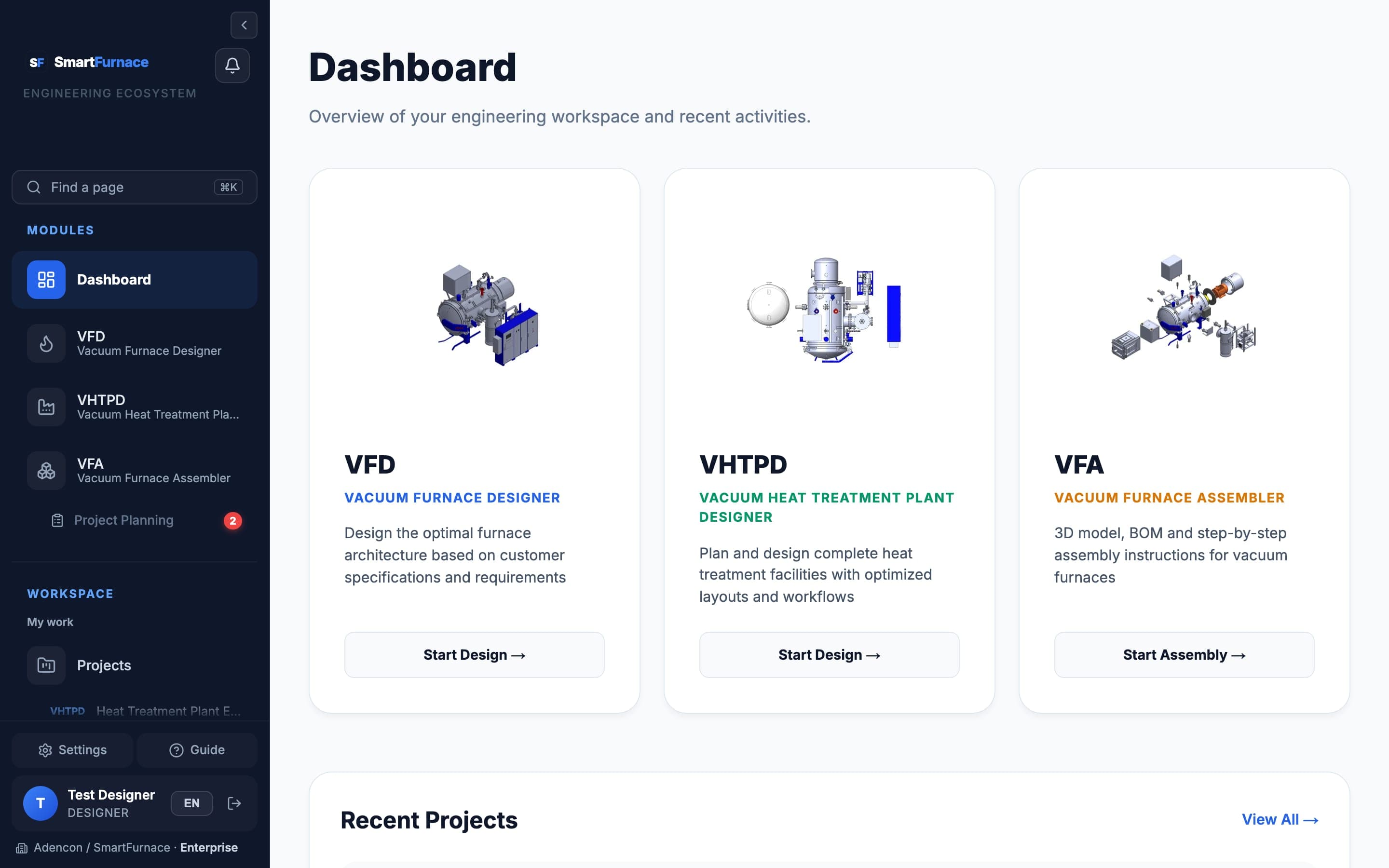
The dashboard is the home screen after login — three module cards, one per design engine, plus a strip of recently saved projects so you can jump straight back into unfinished work.
What's here
- VFD, VHTPD, VFA cards — one click into each design engine.
- Recent Projects — your last few saved designs, with a "View All" link into the full project list.
- The left sidebar is the same on every page: modules on top, then your personal workspace (Projects, Memory Book, Quotes, Settings), then language switcher and account.
The sidebar collapses to icons only via the ← button at the top — useful on smaller screens or when you want more room for the 3D viewport in VFA.
VFD — Vacuum Furnace Designer
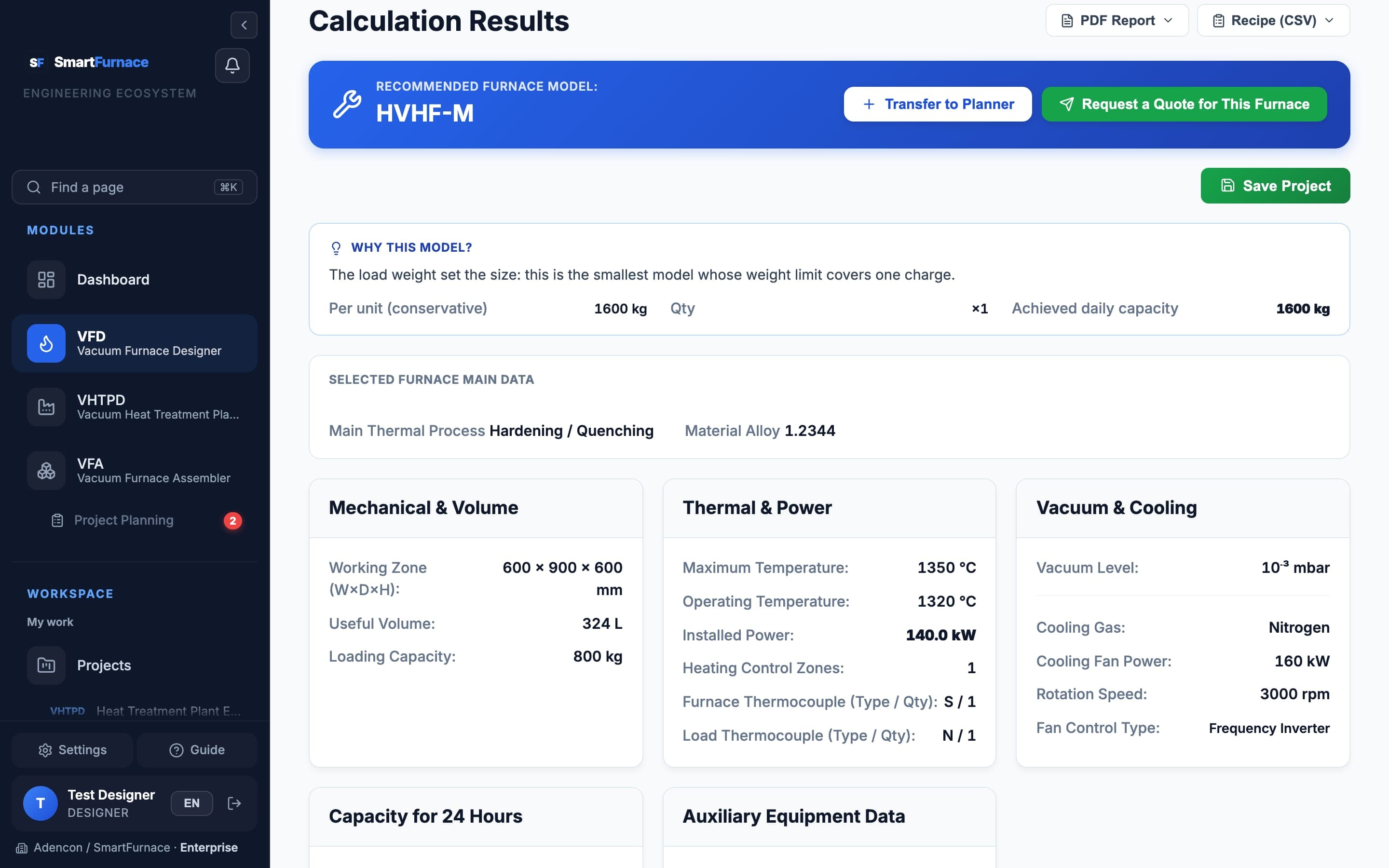
VFD turns a load spec (weight, dimensions, process temperature, gas quench requirements) into a complete furnace design: power requirements, cooling system sizing, vessel dimensions, and a recommended model — automatically, from real engineering calculations rather than lookup tables.
Typical flow
- Enter the load: weight, working-zone dimensions (or let VFD estimate them from weight), and process type (hardening, brazing, sintering, etc.).
- Set process parameters — maximum temperature, heating time, quench gas and pressure.
- Submit — VFD calculates installed power, cooling gas flow and fan power, hot-zone and vessel dimensions, and matches the closest standard furnace model.
- Review the results panel, then save the design to Projects or request a quote directly from the result.
A 600 kg steel load, hardened at 1250 °C with a 2 bar nitrogen quench, resolves to a VHF-696 model with an 8-hour cycle time and 600 kg daily capacity per run — VFD shows the installed power, vessel wall thickness, and cooling fan power behind that recommendation, not just the model name.
VHTPD — Vacuum Heat Treatment Plant Designer
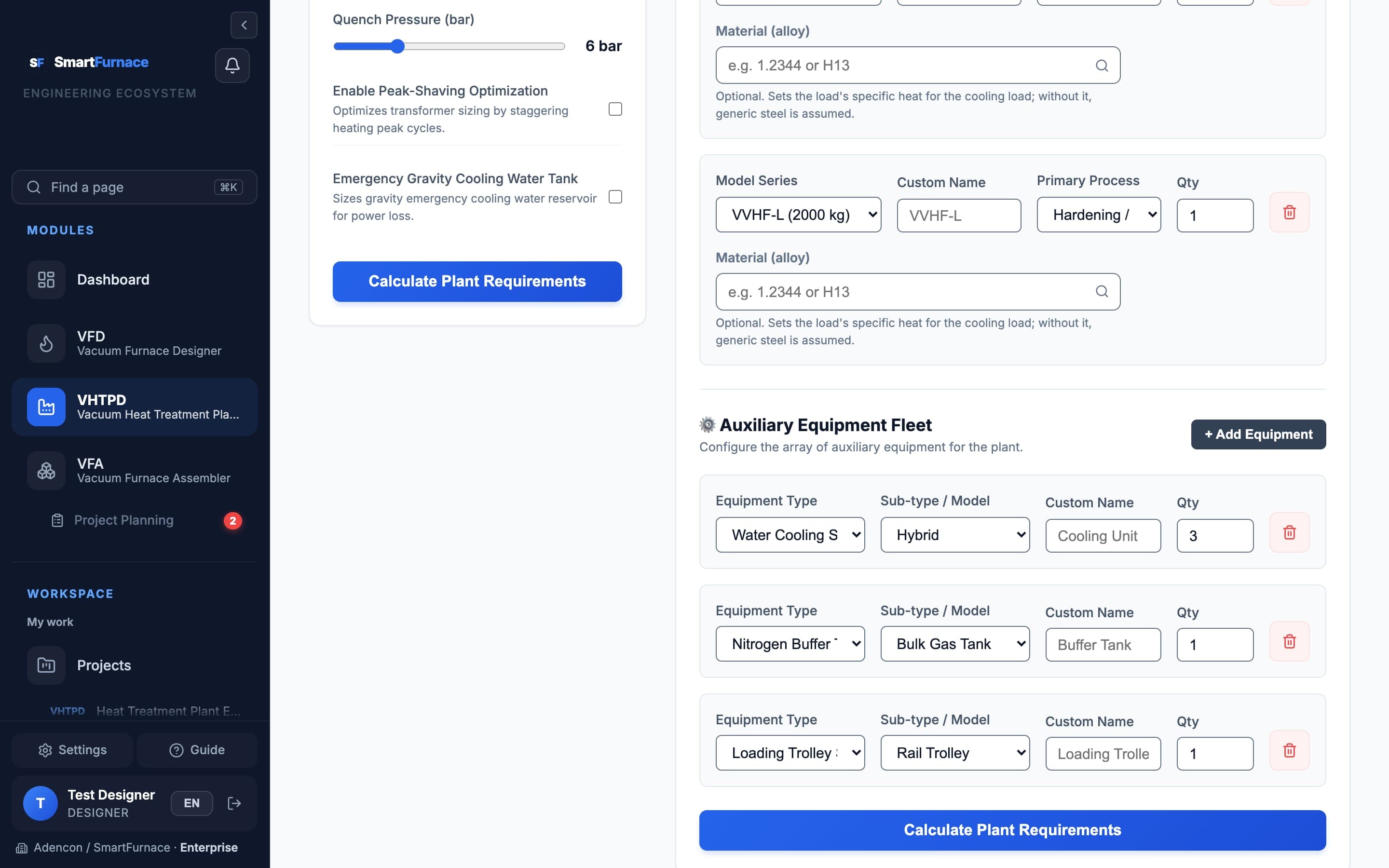
Where VFD sizes one furnace, VHTPD lays out an entire plant: multiple furnaces sharing a transformer, water and gas systems, and a 3D-visualized floor layout — including the simultaneity factor that keeps the shared transformer from being oversized.
Typical flow
- Add the furnaces the plant will run (model, quantity) and any auxiliary equipment — N2 buffer tank, emergency gravity water, control cabinet.
- Set a target daily capacity if you have one — VHTPD flags whether the configuration meets it.
- Review the auto-sized transformer: with five furnaces running, peak demand is never simultaneous, so the transformer comes out smaller than the sum of each furnace's rated power.
- Open the 3D plant view to see the generated floor layout, with power cabling routed between the control cabinet and each furnace.
Five VHF-696 furnaces on one line don't need 5× a single furnace's transformer — VHTPD's simultaneity factor (ksim) accounts for the fact that furnaces rarely all hit peak power at once, sizing the shared transformer realistically instead of for a worst case that never happens.
VFA — Vacuum Furnace Assembler
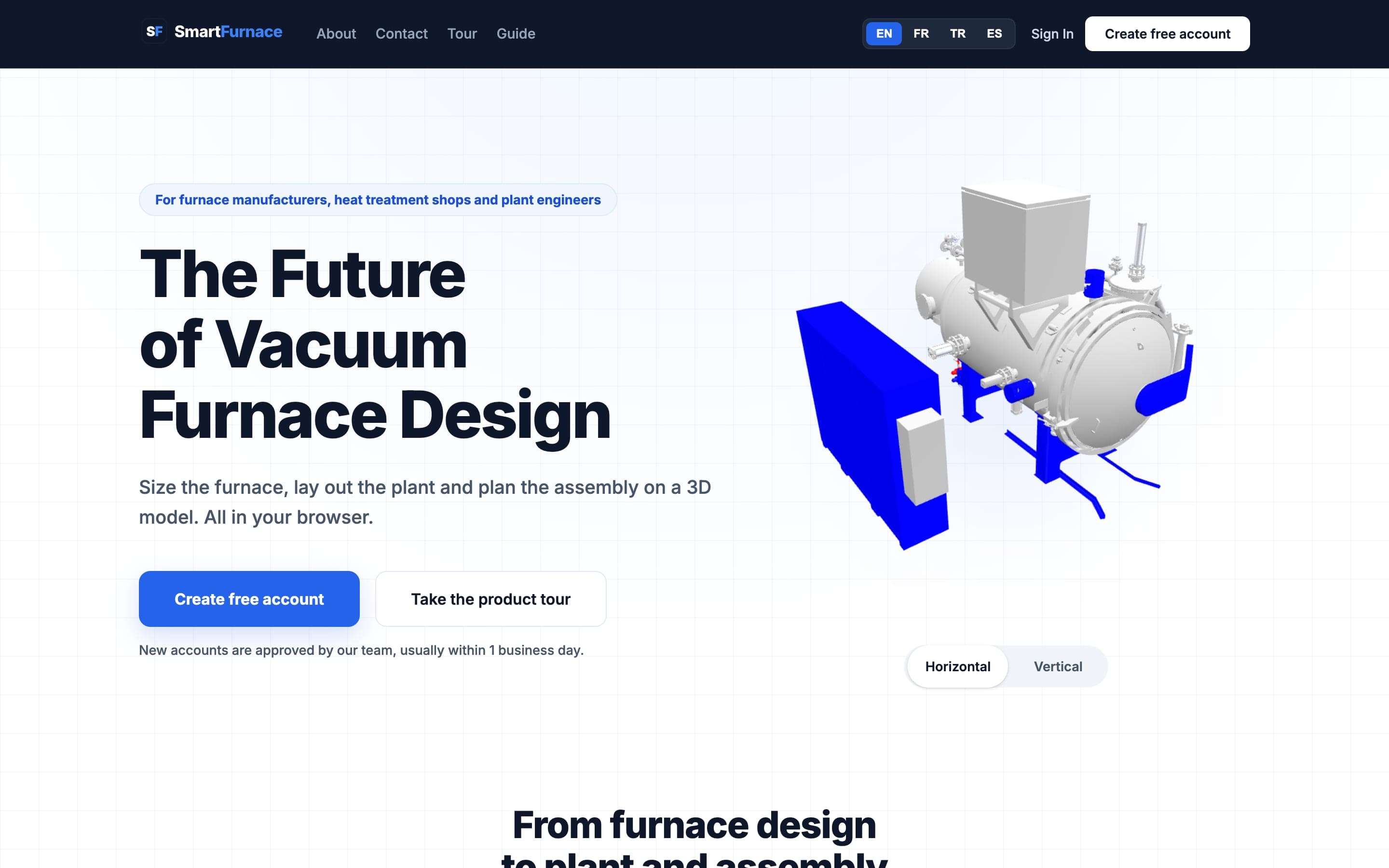
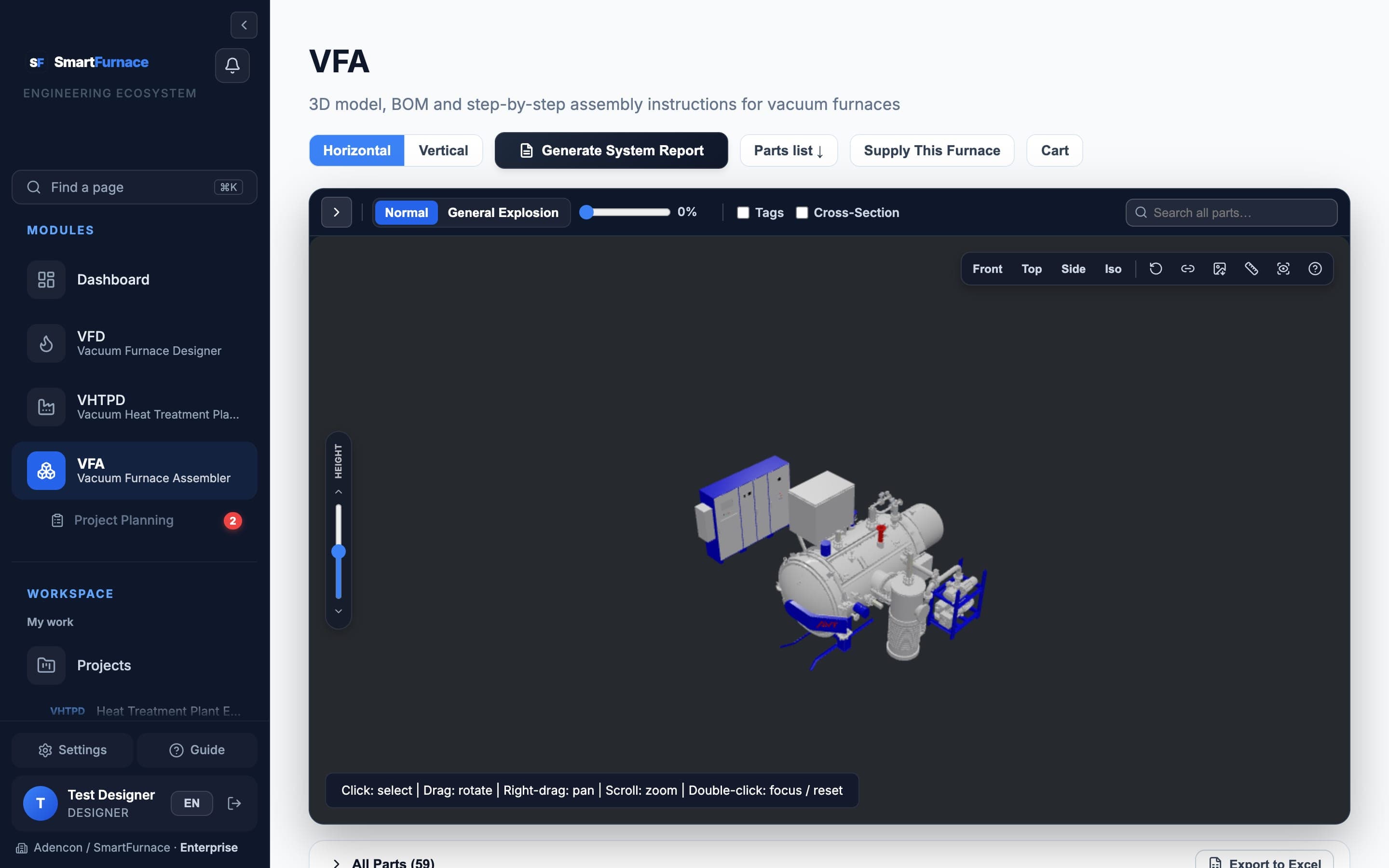
An interactive 3D exploded view of the horizontal and vertical furnace models. Every part is clickable, with its own info panel, bill-of-materials entry, and (where relevant) live stock status — this is the same 3D model used across the platform's marketing pages and the Project Planning module's "view in 3D" links.
Controls
- Horizontal / Vertical — switch furnace model.
- Normal / Exploded View — fully assembled, or every part pulled apart along its assembly direction.
- Click a part to select it and open its info panel; drag to rotate, scroll to zoom, right-drag to pan, double-click to focus a part or reset the view.
- Cross-Section — cut the model open to see internal components (hot zone, heating elements) without exploding the whole assembly.
Clicking the pressure safety relief valve in Exploded view opens its info panel with material, weight, current stock level, and a "Send Question" button that emails the SmartFurnace team directly about that specific part — no separate support ticket needed.
Project Planning
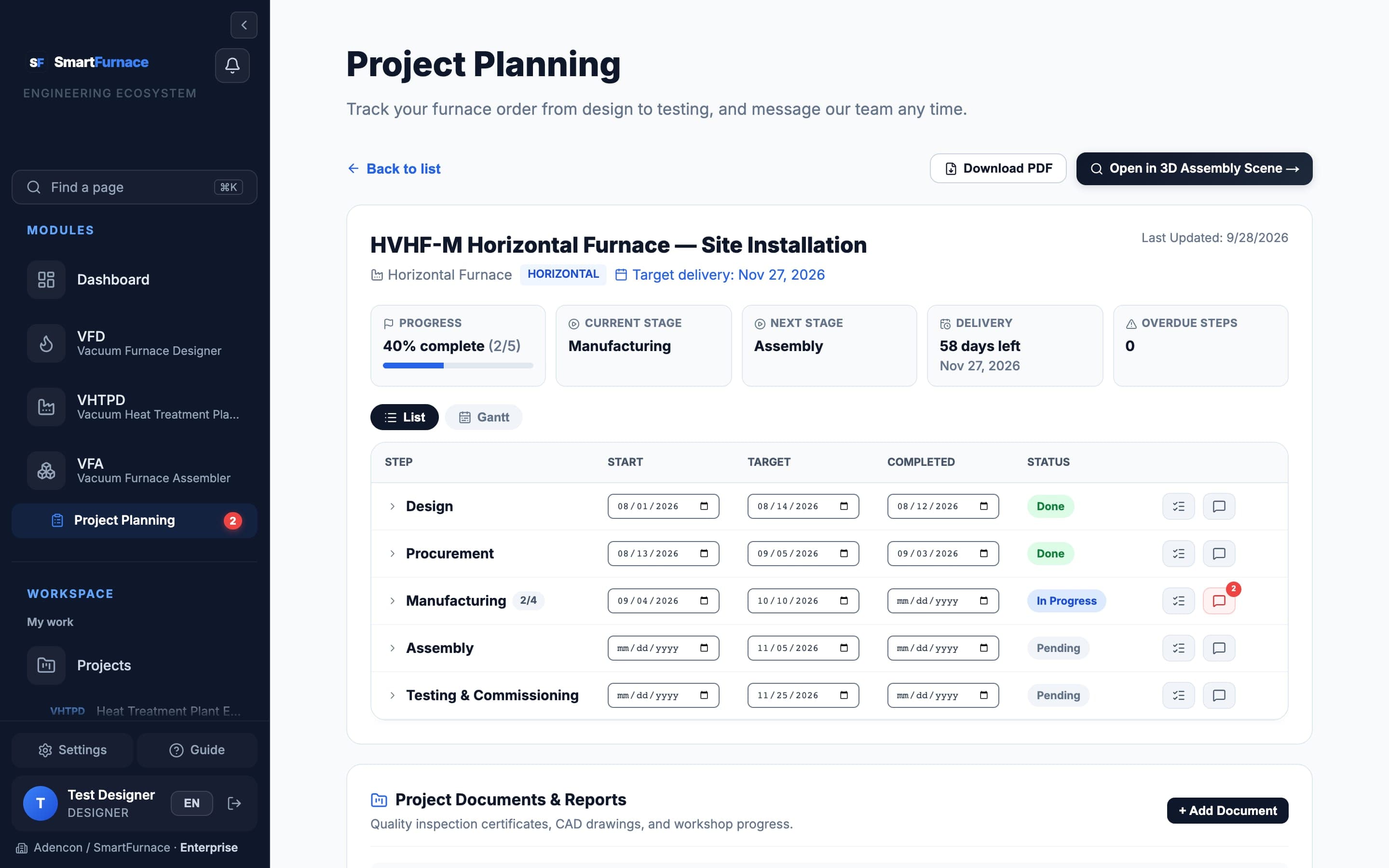
Once you've ordered a furnace, Project Planning tracks it through five real manufacturing stages — Designing, Purchasing, Manufacturing, Assembly, Testing — with a checklist and notes per stage, shared documents, and a direct message thread with the SmartFurnace team. This is order tracking, not a saved calculation.
What you can do
- See overall progress and which stage is current at a glance.
- Read the admin's notes for the current stage and the checklist of what's done.
- Download shared documents — drawings, specifications, test certificates, workshop photos — organized by category.
- Message the team directly from the project; replies show up here and as a sidebar notification badge.
- Jump straight into the 3D VFA viewer for your specific furnace model via "Open in 3D Assembly Scene".
AVF's VFA-Std-900 order sits at 50% overall progress, in the Manufacturing stage. The admin's notes explain the pressure vessel passed its hydrostatic test and the hot zone is 60% assembled; a hydrostatic test certificate and a workshop progress photo are attached. AVF asked about the test date three days ago — the admin's reply is right there in the thread.
Memory Book
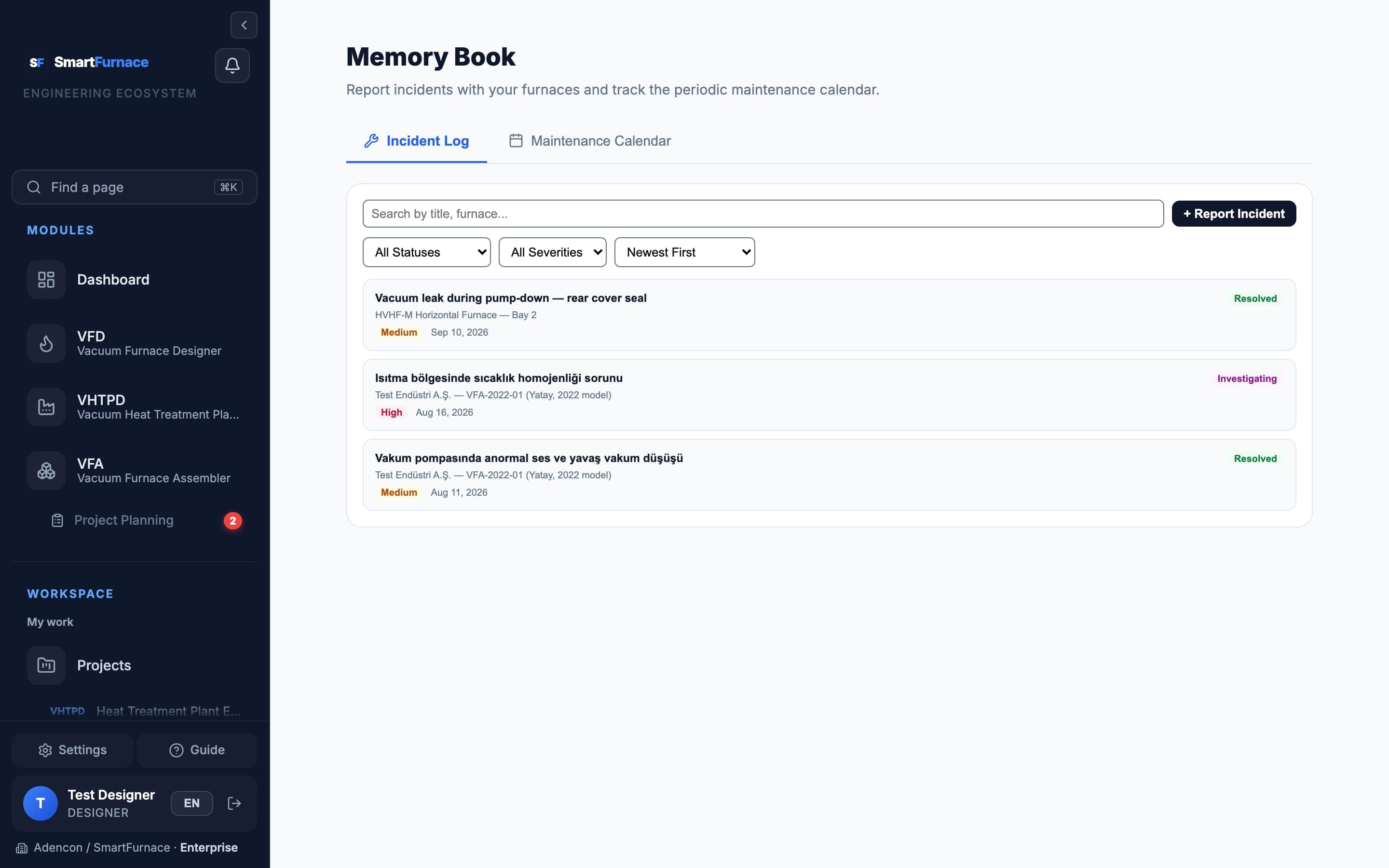
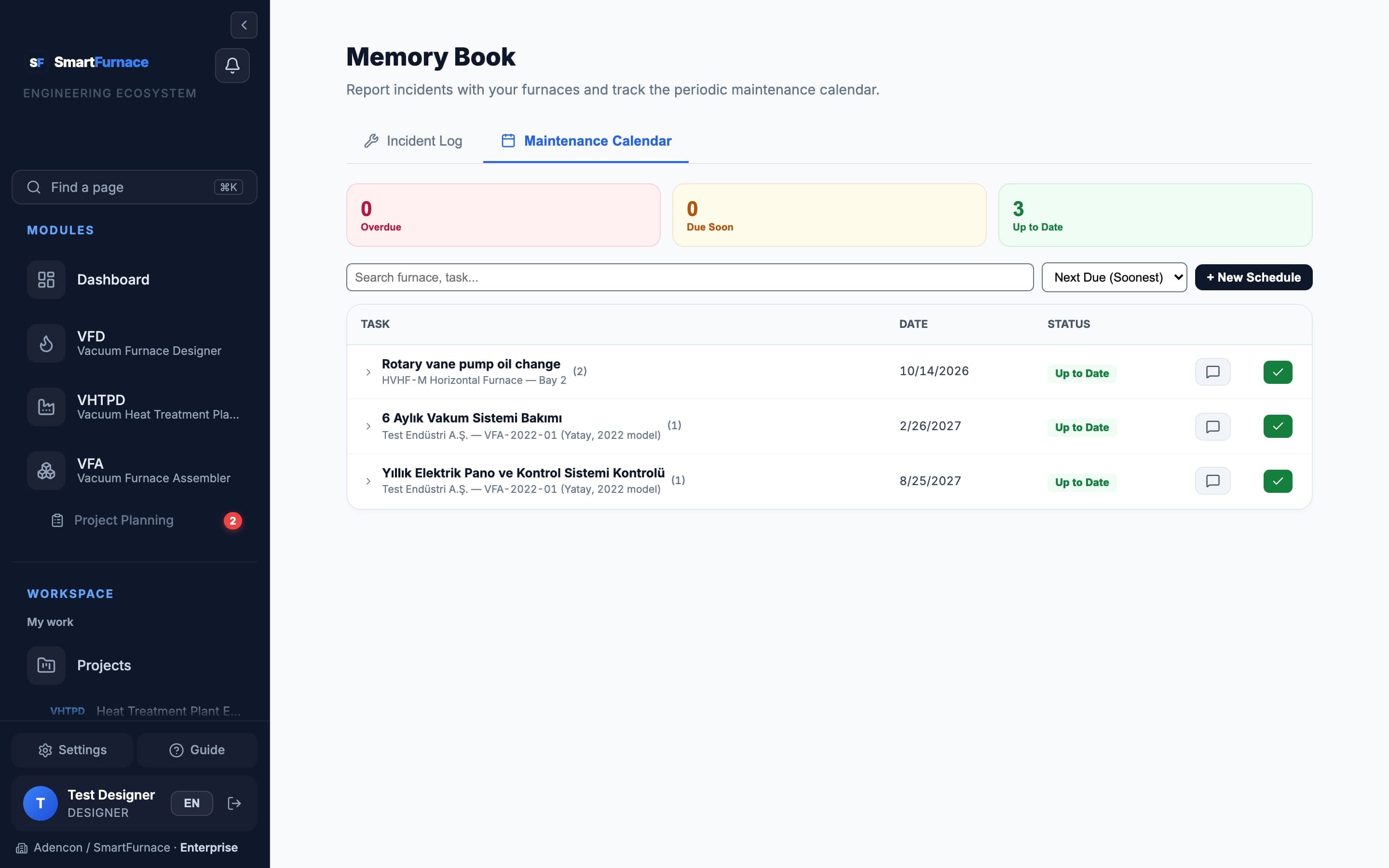
A service logbook for furnaces already in operation, in two tabs: an Incident Log for reporting and tracking faults, and a Maintenance Calendar for periodic service schedules with a full completion history per task.
Incident Log
- Click + Report Incident, name the furnace and (optionally) the specific component, describe what happened, and set a severity.
- Track status as the admin works it: Open → Investigating → Waiting for Parts → Resolved/Closed.
- Add notes or attachments any time while the incident is still open — once it's Resolved or Closed, your side becomes read-only so the record stays a clean audit trail.
Maintenance Calendar
- Each scheduled task shows as Overdue, Due Soon, or Up to Date — computed live from the next due date, not a stored flag that can go stale.
- Expand any task to see its full history of past completions, each with the technician, date, notes and service report.
A critical incident — an over-temperature interlock trip — gets reported same-day and resolved same-day: root cause was a loose thermocouple connector, re-terminated and verified with two full-temperature test cycles. The semi-annual vacuum system service, by contrast, shows three past completions going back to commissioning — a real maintenance history, not just "last serviced: some date".
Saved Projects
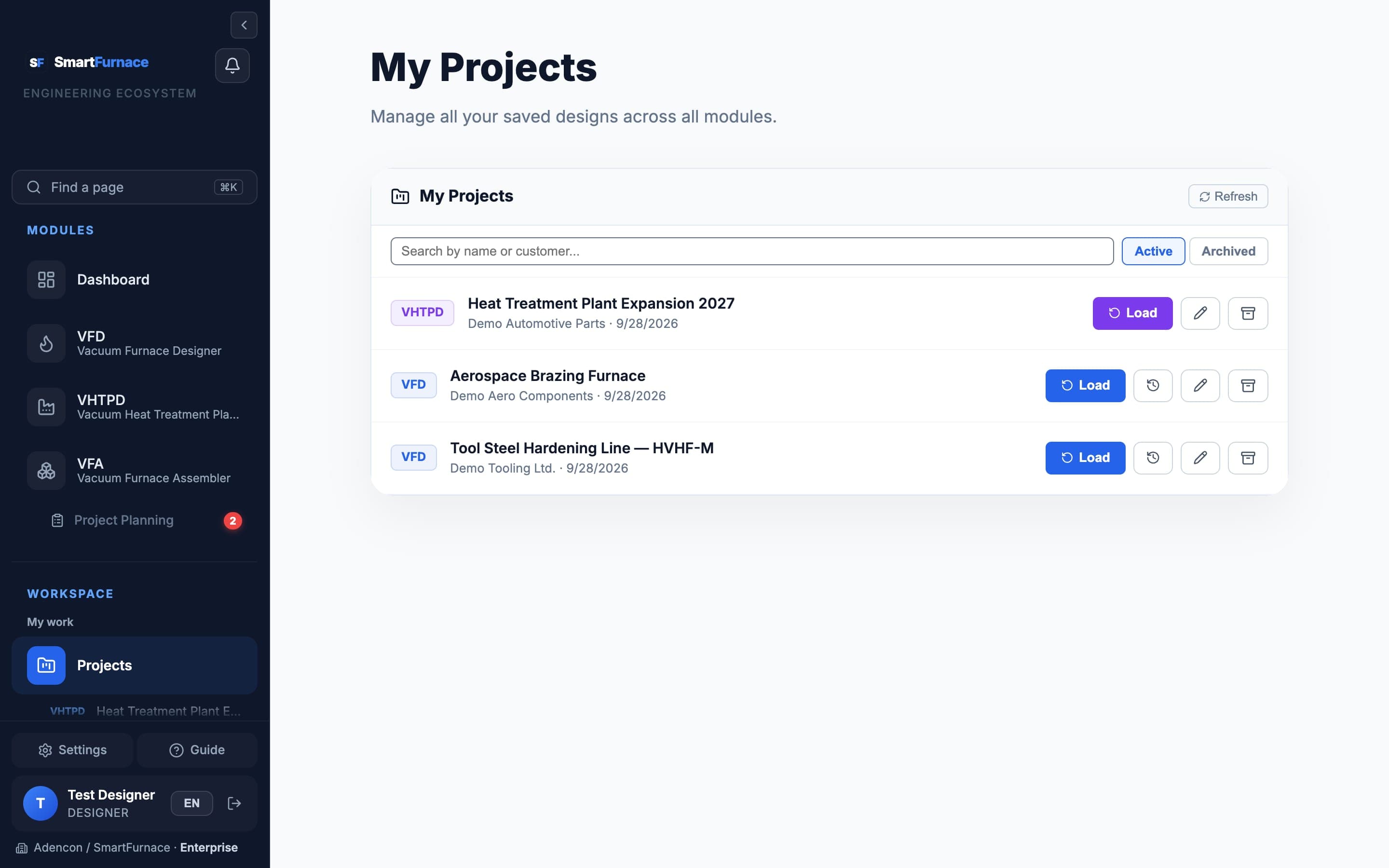
Every VFD and VHTPD calculation you save lands here — a running history of designs, separate from the live-order tracking in Project Planning.
What's here
- Every saved design, with module, name, and last-modified date.
- Open any project to re-load it back into VFD or VHTPD with all inputs intact.
- If you belong to a company workspace, teammates see the same shared project list.
Quote Requests
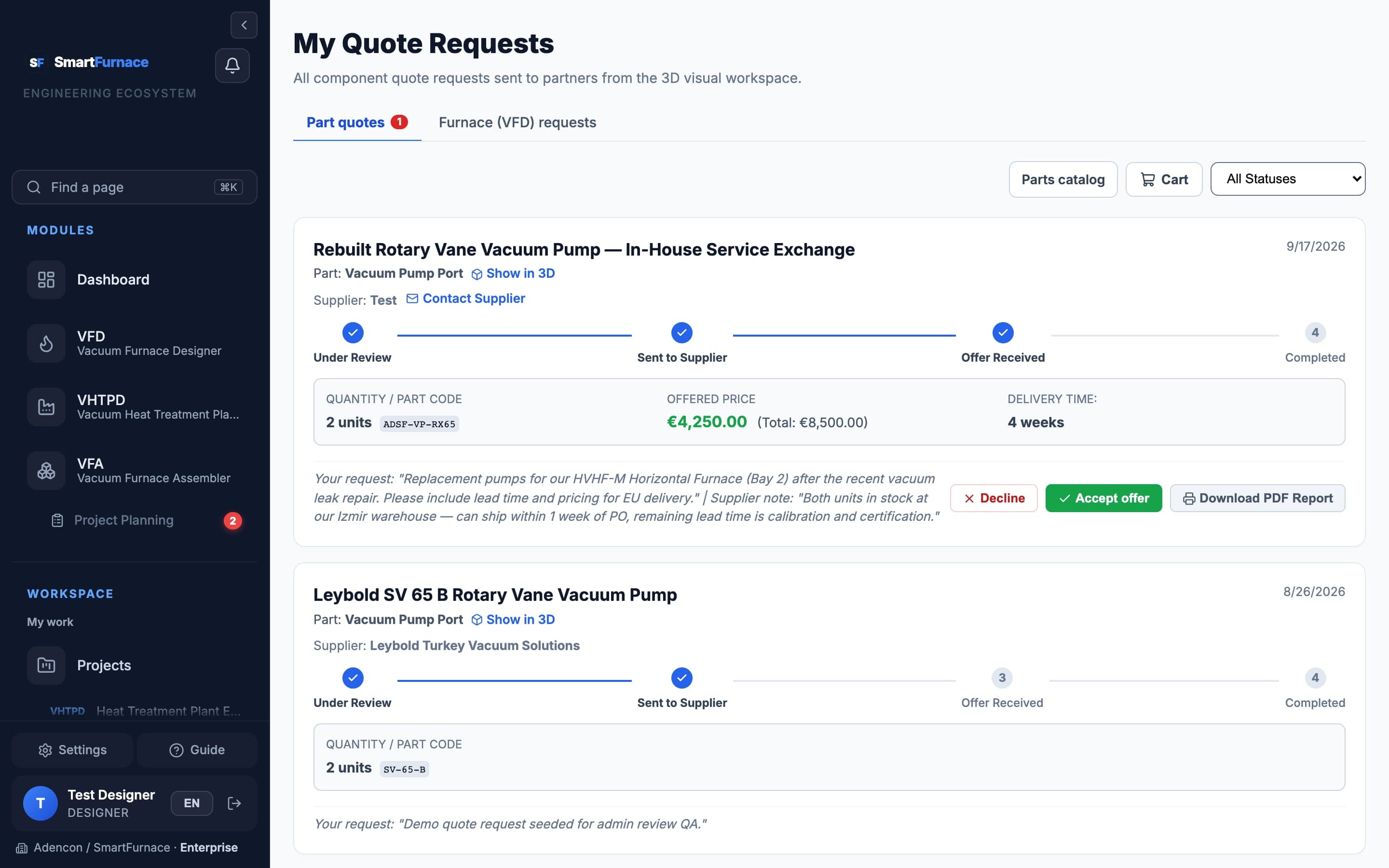
Request a supplier quote directly from a VFA part's info panel, then track it here through the same lifecycle every quote follows on the platform.
Quote lifecycle
| Status | Meaning |
|---|---|
| Pending Admin Review | Just submitted — a SmartFurnace admin reviews it before it goes to a supplier. |
| Awaiting Supplier | Admin approved it; the supplier now has it. |
| Supplier Quoted | Price, currency, delivery time and notes are in — ready for you to review. |
| Rejected | Declined by admin or supplier, with a reason. |
| Completed | Quote accepted, order placed. |
Every customer request goes through an admin before reaching a supplier — it keeps the supplier-facing side of the platform curated rather than open to unfiltered inbound requests.
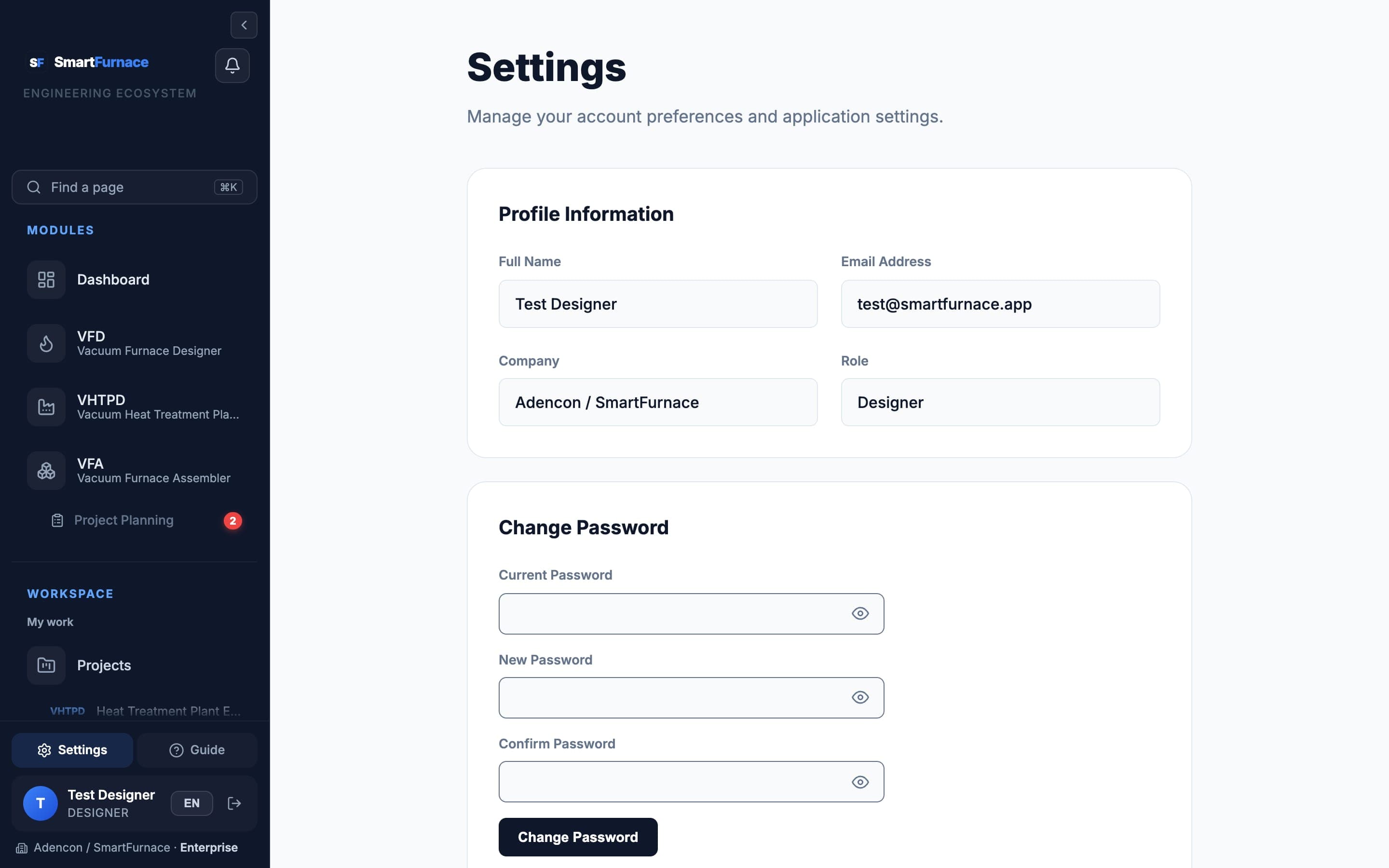
Settings & Team
Account details live in Settings; if your account belongs to a company workspace, a Team page also appears in the sidebar for managing members.
What's here
- Profile details and password change.
- Team (company accounts only): invite teammates by email, see their role (Owner/Admin/Designer/Viewer), and everyone on the team shares the same Projects, Project Planning, and Memory Book records.
- An approved Supplier Portal link appears in the sidebar for accounts also approved as a supplier.